
A Complete Guide to Installing IPTV on Roku
Use the IboPlayer app to get IPTV running on your Roku device.
Step 1: Install IboPlayer from the Channel Store
Roku uses the official Channel Store for all apps, making the initial setup straightforward.
From your Roku home screen, navigate to Streaming Channels to open the Channel Store.
Go to Search Channels and type in IboPlayer.
Select the IboPlayer app from the search results and click Add channel to install it.
Step 2: Find Your Device ID and Device Key
Once installed, you need to find the unique identifiers for your device within the app, since we need this information to activate your service.
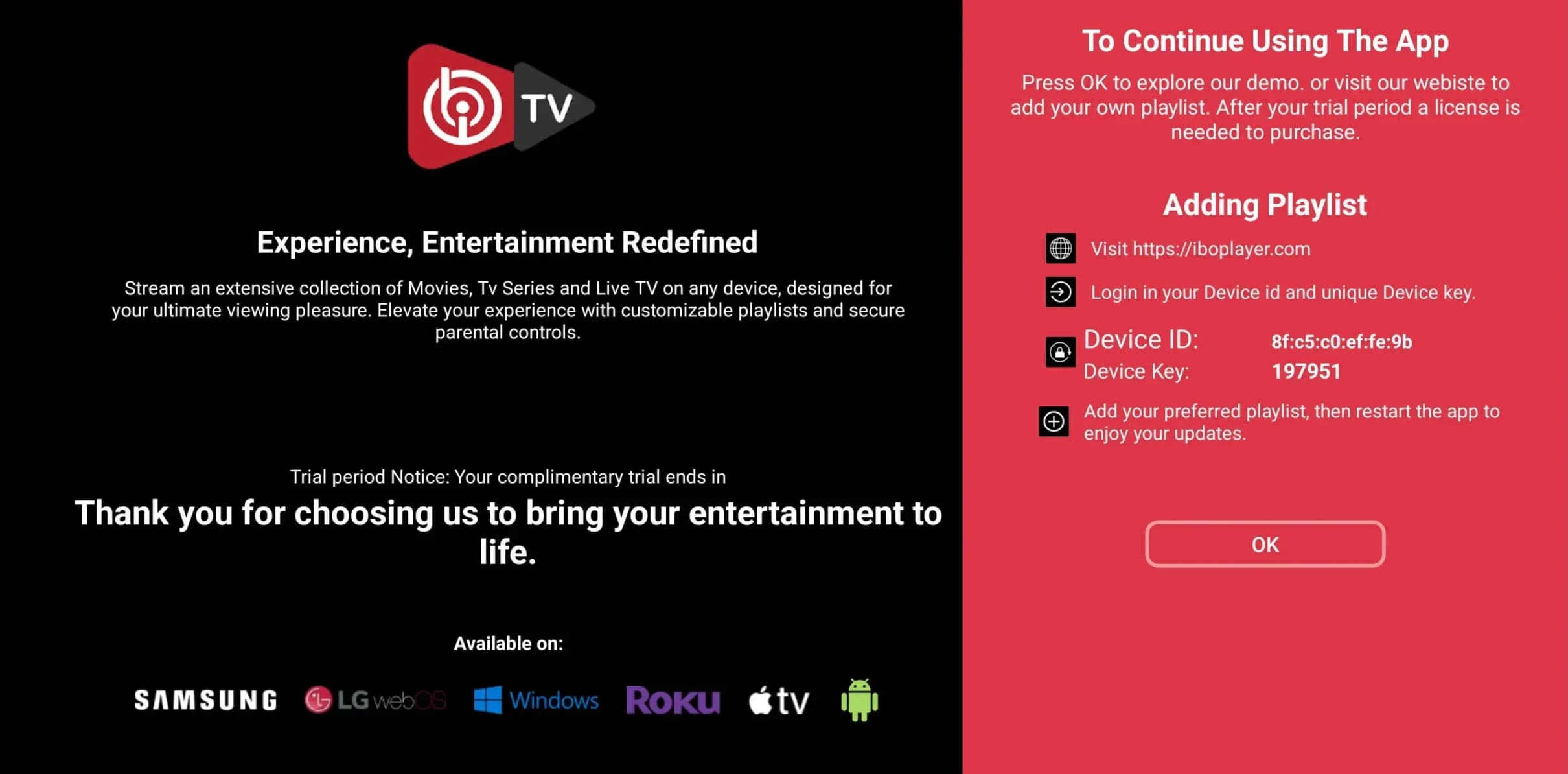
Open the IboPlayer app from your Roku home screen.
Navigate to the Settings menu within the app (often a gear icon).
Carefully write down or copy the Device ID and Device Key displayed on the screen.
Step 3: Activate Your Service
The final step is to send us your device details so we can upload your playlist and activate your subscription.
Email: [email protected]
WhatsApp: +1 780-652-6203
Once we receive your details, we'll activate your playlist and notify you. After that, simply restart the IboPlayer app on your Roku, and your channels will be ready to watch!
Other Device Guides
This guide is for educational purposes only.