
A Complete Guide to Installing IPTV on Apple TV
Setting up IPTV on Apple TV is simple with apps from the official App Store.
Step 1: Find the App on the App Store
Unlike other devices, Apple TV makes it easy to install IPTV apps directly from the official App Store. No sideloading is required.
Turn on your Apple TV and navigate to the App Store.
Go to the Search tab and look for our recommended app: IboPlayer.
Step 2: Download and Install
Once you've found the app, simply download it to your device.
Select the app from the search results and click Get or Download (it may appear as a cloud icon if you've downloaded it before).
The app will automatically download and install on your Apple TV's home screen.
Step 3: Logging In & Setup
Now, open the IboPlayer app.
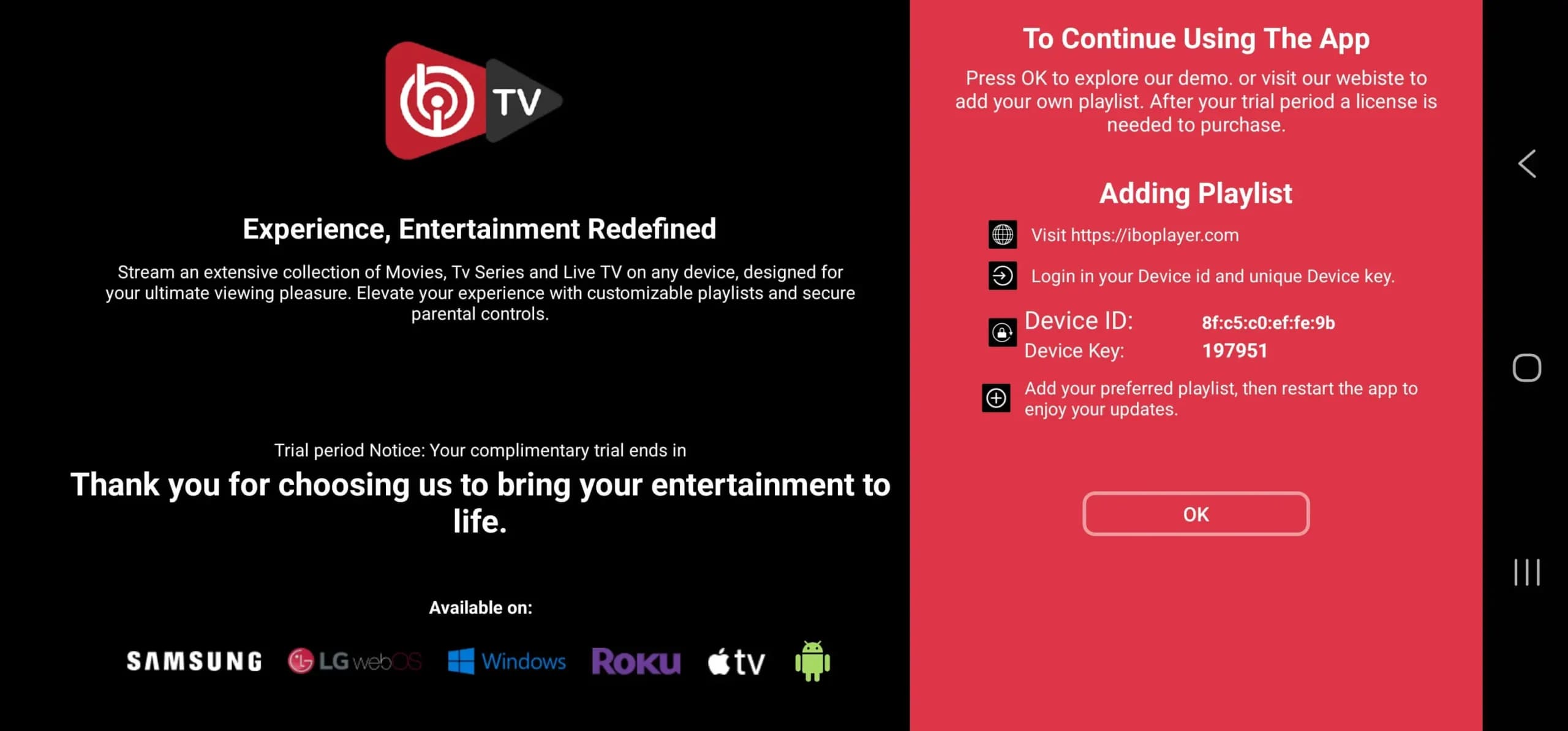
Open the app (IboPlayer) and take note of the unique Device ID and Device Key displayed on your screen.
Email: [email protected]
WhatsApp: +1 780-652-6203
Once the playlist is uploaded, you'll be notified. The app will download your channels and VOD content, and once complete, you're ready to stream!
Troubleshooting
- Login Error: This is the most common issue. Carefully re-enter your credentials, ensuring there are no typos. They are case-sensitive.
- App Crashing: Restart your Apple TV. If the problem persists, try deleting and reinstalling the app.
- No Channels Loading: Ensure your internet connection is stable and contact support if the issue continues, as there may be a problem with your playlist.
Other Device Guides
This guide is for educational purposes only.